
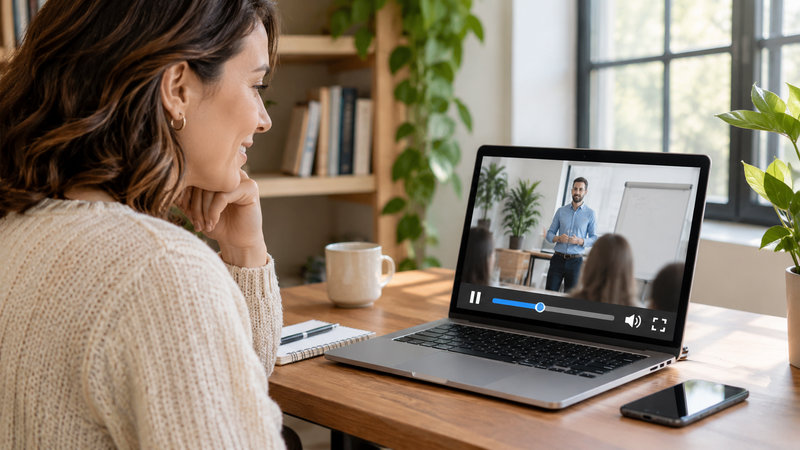
Not everyone who signs up for a webinar makes it to the live session. For some of your audience, the replay is the webinar. Plenty of people won’t watch it straight through, either. They’ll pause when the phone rings or go back to a slide they missed.
Whether they can do that depends on how you set up the video player on your replay page. Funnel software like ClickFunnels and GoHighLevel lets you switch controls like pause, rewind, and autoplay on or off. It’s worth a few minutes to get them right before the replay link goes out.
Set Autoplay to Match How Browsers Handle Sound
Most browsers restrict videos from starting automatically with sound. ClickFunnels and GoHighLevel both follow that rule, so if autoplay is on, the replay starts muted in either one.
That’s a bad start for a replay. People came to hear what you said, and a muted replay is just a silent video until they find the volume.
For a full-length replay, leave autoplay off. Viewers click play, and the sound comes on with it.
If you want autoplay on a short preview clip instead, ClickFunnels has a setting called Unmute Label that adds a speaker icon so viewers can turn the sound on. On YouTube videos, though, it only works when Video Controls is turned off, and Block Pause is disabled. So if you’re using a YouTube video in ClickFunnels, you can’t show the Unmute Label and Video Controls at the same time.
Decide Whether Viewers Can Pause and Rewind
On a long replay, people need to be able to pause and go back. In ClickFunnels, the setting for this is called Video Controls. Viewers can pause, rewind, and skip ahead when it’s turned on. It’s off by default and only applies to YouTube videos, so if your replay is on YouTube, switch it on before you publish.
Leaving controls off can work for a short clip meant to play straight through. On a 55-minute replay, it’s a different story. Picture a viewer who gets a phone call at minute 20. With controls, they hit pause and come back to it. Without them, there’s no pause button and no way to go back to what they missed.
You’ll also see a setting called Block Pause. It prevents viewers from pausing, making a recording feel live, and ClickFunnels suggests it for prerecorded webinars. It can work if you want the replay to feel like a live broadcast. It also only works on desktop. But when people watch a lengthy replay, they could give up and close the tab if they can’t pause.
In GoHighLevel, upload the replay directly using its Hosted Video option, which gives you the most control over playback settings. Its Playback Controls panel lets you switch pause and the progress bar on or off. Keep both on. The progress bar is what lets viewers drag back to an earlier point. Hide it, and they can’t.
What Your Funnel Software Controls and What Your Video Host Controls
You might go looking for the pause setting and not find it anywhere in the page editor. That usually comes down to where the video is stored. When it’s hosted on another platform, some of its settings stay with that platform. If you’ve used other landing page software, you may have run into the same problem.
In ClickFunnels, Video Controls only works with YouTube. If your replay is on Wistia or you pasted an embed code from another video site, you set the controls on that platform instead. For Vimeo or any other host, check that platform’s player settings too.
In GoHighLevel, a YouTube, Vimeo, or Wistia link has only a few settings in the builder, mainly autoplay, size, background, and colors. If you want the pause and progress bar switches, upload the replay as a Hosted Video.
Match the Controls to the Job of the Replay
For a full replay, keep it simple: autoplay off, controls on. People are trying to catch up on something they missed, so let them watch at their own pace.
If you also use a short clip, say a two-minute highlight on your registration or sales page, muted autoplay can work there. For YouTube and Vimeo clips, ClickFunnels’ Unmute Label adds a speaker icon that lets viewers turn the sound on.
Whatever the video, put your next step right under it. If you’re asking people to book a call or buy, that button should be the first thing they see when the video ends, not something they have to scroll back up to find.
If someone stops partway through, GoHighLevel’s Video Tracking trigger lets you set up a follow-up email for contacts who watched less than half the video. You can include a link back to the replay, though it won’t pick up where they stopped. This only works for people who are already contacts in your account.
Test the Replay on a Phone and a Desktop
Before the replay link goes out, watch the page the way a viewer would. Open it in a private window (incognito in Chrome), not your usual browser. Chrome can let videos autoplay with sound on desktop for sites you play media on often, especially if you’ve tested the video several times. A private window is closer to what a first-time visitor sees.
Check the sound when the page loads. Then hit pause, drag back a bit, and press play to make sure each control works the way you set it. Do the same on your phone, since some settings behave differently there. Block Pause, for example, only works on desktop.
If your video is on Wistia or uses an embed code, open the host’s settings and make sure the controls there are set the way you want.
Last, drag the video close to the end and let it finish. When it stops, your next step should be right there on screen.
Give Viewers Control of an Hour-Long Video
Start with controls on and autoplay off. Only take a control away when you can name the reason, like a short clip that’s meant to play straight through.
People watching an hour-long replay are fitting it around the rest of their day. Letting them pause and go back can make it easier for them to reach the end and see the offer waiting under the video.